YouTube is useful. YouTube’s recommendations are not, especially when you're trying to focus!
Most people don’t open YouTube planning to scroll Shorts or watch ten suggested videos in a row. It just happens. The interface quietly nudges you there.
Heyday lets you keep YouTube as a tool while removing the parts designed to hijack your attention.
This guide shows you how.
YouTube isn’t just videos. It’s a set of features optimized to keep you watching:
None of these help you watch the video you came for. They exist to extend your session.
Removing distractions doesn’t break YouTube.
With Heyday, you still get:
You lose only the parts that pull you off-task.
The goal is intention, not restriction.
Heyday automatically removes distracting YouTube features so you don’t have to tweak settings or manage multiple extensions.
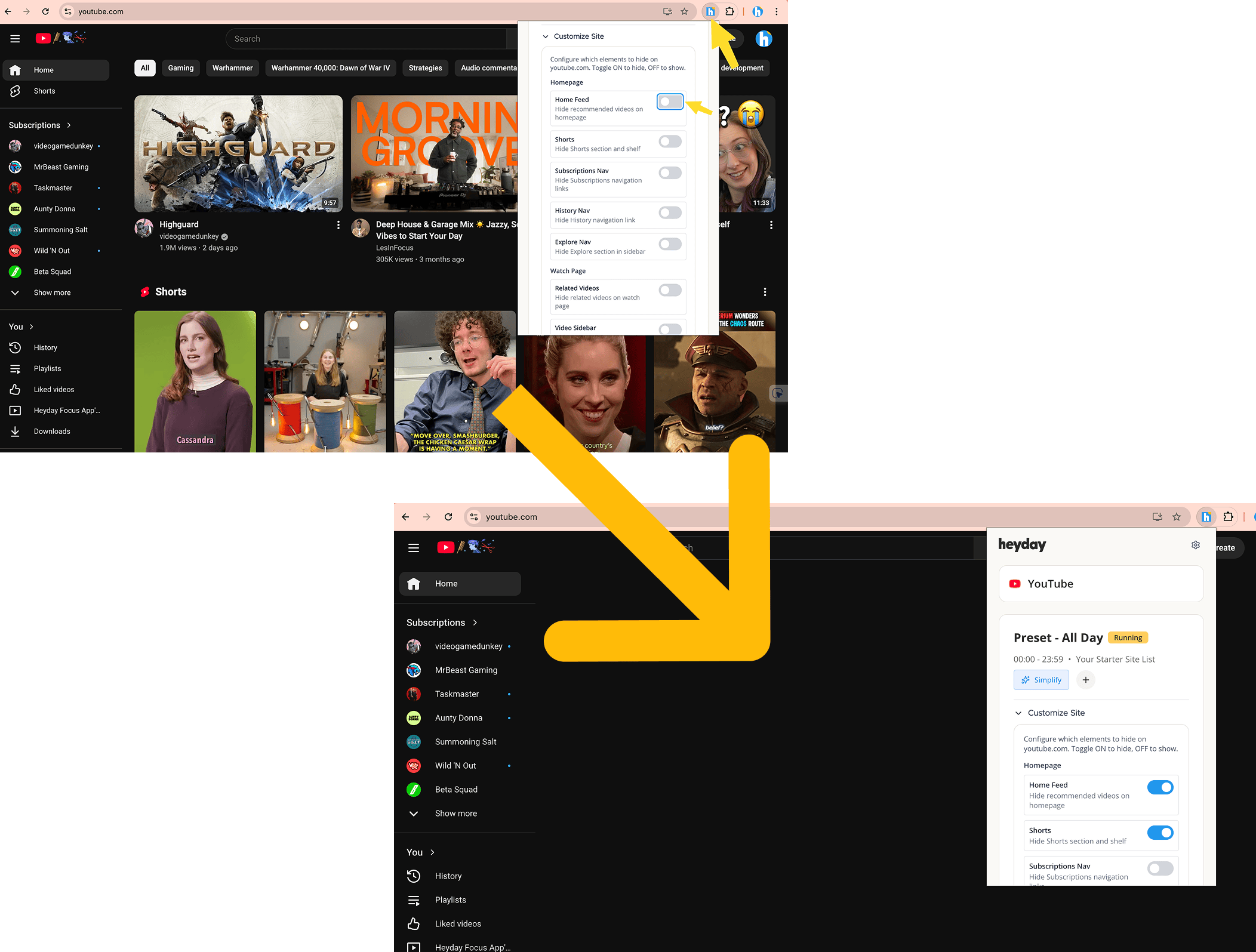
You open YouTube, do what you came to do, and leave.
That’s it.
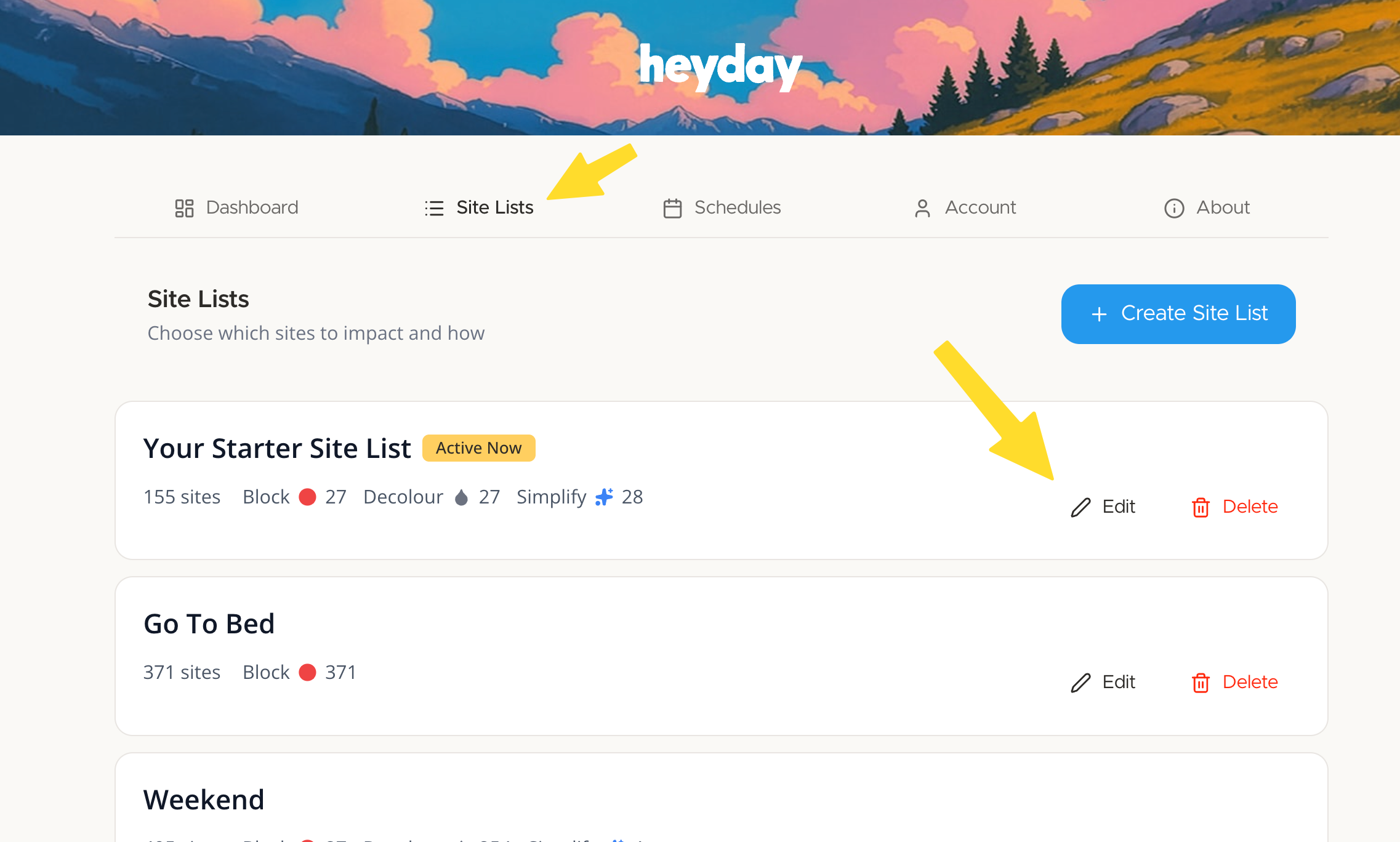
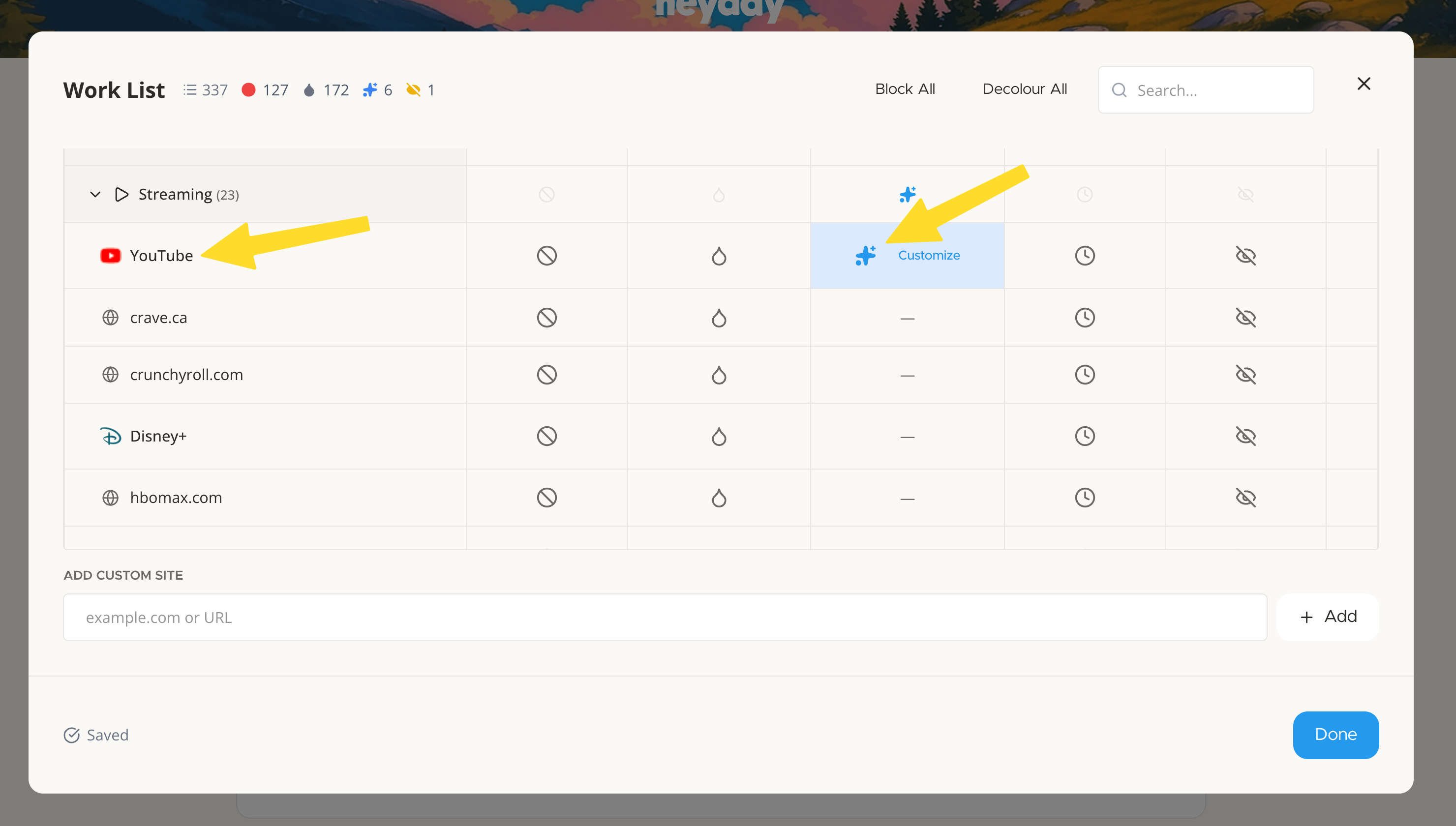
Changes apply instantly. No refresh required.
The first thing people notice is how empty YouTube looks.
That’s not a bug. It’s the absence of manipulation.
Most users report:
YouTube stops competing for your attention and starts behaving like a normal website.
YouTube lets you turn off autoplay.
It does not let you turn off recommendations.
That’s intentional.
Heyday works at the interface level, removing attention traps instead of asking for willpower. You don’t need discipline to avoid something that isn’t there.
Use YouTube normally for seven days with Shorts and recommendations removed.
At the end of the week, ask yourself:
Most people don’t go back.
YouTube isn’t unique. The same design patterns show up on Instagram, Twitter, Reddit, and more. Heyday applies the same logic everywhere:
Keep what you intentionally use. Remove what pulls you in without consent.
That’s how the internet becomes useful again.
Take control of your online experience. Remove distractions, set boundaries, and browse with intention—on your terms.


.png)